hexo-fluid 美化指南
joshua0729 · · 科技·工程
hexo-fluid 美化指南
更好的阅读体验与效果预览【持续更新】
注意:本文仅介绍 hexo-fluid 的美化方法,不介绍搭建方法。
注意:所有改动都要重新部署才能生效。(大概?) 方法:在博客根目录执行指令:
hexo clean
hexo g
hexo s
确认可以之后执行:
hexo clean
hexo g
hexo d
hexo s
引言
众所周知作为 oier,大部分人都会有一个博客。
但是当你真的搭建了一个博客之后,会发现好像和网上其他大佬的博客相差很远。
这时候,你就需要美化你的博客了。
搭建 & 基础设置
这里不涉及搭建方法,如果要学习如何搭建,可以阅读一篇洛谷上的搭建指南(我自己没写,但是未来考虑写一个),比如这个(大力推荐)。
对于一些博客内置的基础设置,可以尝试通过官方技术文档进行设置。
对于官方文档,建议自习地从头到尾读一遍。
重要的几个:
- 在
_config.fluid.yml中搜索关键词math,将enable设为true,才能开启数学公式的渲染。
美化
这里的美化方法都经过实战检测其实就是直接看你现在在的这个博客,效果就是这样。
前置定义
本文中一旦出现关键词 custom_js,那么都指这个部分:
一旦出现关键词 custom_css,那么都指这个部分:
页脚
评论
敬请期待
统计访问次数
fluid 自带的教程(这里)中的两种方式我自己是试过的,但是都没什么效果。个人使用的方法是经典个人主页统计。
方法:
- 访问这里,按照提示创建一个自己的名字。
- 找到
_config.fluid.yml,找到下面这个部分(检索关键词footer) - 在下面的 html 中插入一段内容:
<img width="【修改】" height="64" src="https://count.getloli.com/@【修改】?name=【修改】&theme=3d-num&padding=8&offset=0&align=top&scale=1&pixelated=1&darkmode=auto" alt="【修改】">。其中第一个【修改】为图片的宽度和高度,可以不填(那么必须要去掉这两个属性,但是填上是为了在未加载出图片时不会用默认加载动画的大小来预设图片的大小,不然非常奇怪)。第一个数值计算方式:(你在设置图片的时候设置的位数*46)其中你在设置图片的时候设置的位数默认为 7。第二,三个【修改】是你在第一步创建的名字。 - 注意:不知道为什么,我的博客要把这个 html 标签放在所有页脚的最后一个位置,不然后面的内容会加载不出来。
页脚显示运行时间
- 在
根目录/themes/fluid/source/js目录下创建一个duration.js,内容为:!(function() { /** 计时起始时间,自行修改 **/ var start = new Date("2025/06/13 19:31:47");
function update() { var now = new Date(); now.setTime(now.getTime()+250); days = (now - start) / 1000 / 60 / 60 / 24; dnum = Math.floor(days); hours = (now - start) / 1000 / 60 / 60 - (24 dnum); hnum = Math.floor(hours); if(String(hnum).length === 1 ){ hnum = "0" + hnum; } minutes = (now - start) / 1000 /60 - (24 60 dnum) - (60 hnum); mnum = Math.floor(minutes); if(String(mnum).length === 1 ){ mnum = "0" + mnum; } seconds = (now - start) / 1000 - (24 60 60 dnum) - (60 60 hnum) - (60 mnum); snum = Math.round(seconds); if(String(snum).length === 1 ){ snum = "0" + snum; } / 显示的文字内容,详细你结合实际渲染结果应该能看出改哪里 / document.getElementById("timeDate").innerHTML = "本站已在随时准备跑路的状态下以极其不稳定的方式运行了 "+dnum+" 天"; document.getElementById("times").innerHTML = hnum + " 小时 " + mnum + " 分 " + snum + " 秒"; }
update(); setInterval(update, 1000); })();
2. 找到 `_config.fluid.yml`,找到下面这个部分(检索关键词 `footer`)
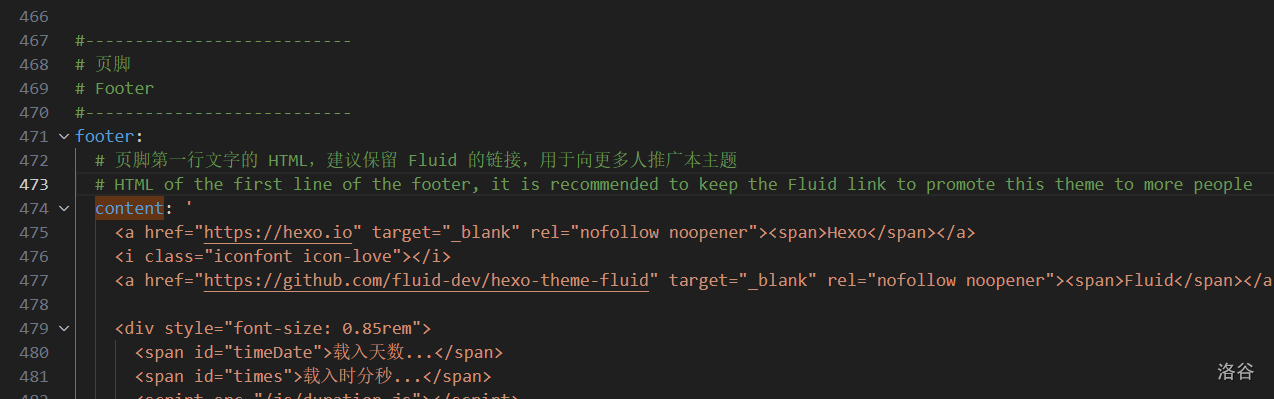
3. 在下面的 html 中插入一段内容(尽量插在访问次数统计的前面):
```html
<div style="font-size: 0.85rem">
<span id="timeDate">载入天数...</span>
<span id="times">载入时分秒...</span>
<script src="/js/duration.js"></script>
</div>显示随机英文句子
本部分根据官方博客经个人总结而来。
这里我没有使用一言,而是使用了 Rainbow 来展示句子。
- 在
./themes/fluid/source/js目录下创建一个englishwordshow.js,内容为:fetch('https://api.eatrice.top') .then(response => response.json()) .then(data => { var rainbow = document.getElementById('rainbow'); rainbow.innerHTML = data.Content; rainbow.href = "https://rainbow.eatrice.top/?ID=" + data.ID; }) .catch(console.error) - 找到
_config.fluid.yml,找到下面这个部分(检索关键词footer) - 插入一下 html:
<p>每日一句:<a id="rainbow" href='' target="_blank">🌈 获取中...</a></p>,格式可以自行调整。 - 注意:我这里不知道为什么要插入两行一样的代码才能显示出来。
- 在
custom_js中插入一行:
- /js/englishwordshow.js # 英语句子展示库
注释可选,但是建议加上,防止之后自己看不懂。
页面
背景动态黑色线条
- 在
custom_js中加入:
- /js/black_point_under.js # 动态黑色线条
- 在
./themes/fluid/source/js目录下创建一个black_point_under.js,内容为:(参数在注释中调,原本压行的代码我把它展开了)!function(){ function o(w,v,i){ return w.getAttribute(v)||i } function j(i){ return document.getElementsByTagName(i) } function l(){ var i=j("script"),w=i.length,v=i[w-1]; return{l:w,z:o(v,"zIndex",-1),o:o(v,"opacity",0.5),c:o(v,"color","0,0,0"),n:o(v,"count",99)}//最后一个参数是粒子数量,默认99 } function k(){ r=u.width=window.innerWidth||document.documentElement.clientWidth||document.body.clientWidth,n=u.height=window.innerHeight||document.documentElement.clientHeight||document.body.clientHeight } function b(){ e.clearRect(0,0,r,n); var w=[f].concat(t); var x,v,A,B,z,y;t.forEach(function(i){ i.x+=i.xa,i.y+=i.ya,i.xa*=i.x>r||i.x<0?-1:1,i.ya*=i.y>n||i.y<0?-1:1,e.fillRect(i.x-0.5,i.y-0.5,1,1); for(v=0;v<w.length;v++){ x=w[v]; if(i!==x&&null!==x.x&&null!==x.y){ B=i.x-x.x,z=i.y-x.y,y=B*B+z*z; y<x.max&&(x===f&&y>=x.max/2&&(i.x-=0.03*B,i.y-=0.03*z),A=(x.max-y)/x.max,e.beginPath(),e.lineWidth=A/2,e.strokeStyle="rgba("+s.c+","+(A+0.2)+")",e.moveTo(i.x,i.y),e.lineTo(x.x,x.y),e.stroke()) } } w.splice(w.indexOf(i),1) }),m(b) } var u=document.createElement("canvas"),s=l(),c="c_n"+s.l,e=u.getContext("2d"),r,n,m=window.requestAnimationFrame||window.webkitRequestAnimationFrame||window.mozRequestAnimationFrame||window.oRequestAnimationFrame||window.msRequestAnimationFrame||function(i){ window.setTimeout(i,1000/45) },a=Math.random,f={ x:null,y:null,max:20000//最后一个是与鼠标的连线距离,默认20000 }; u.id=c;u.style.cssText="position:fixed;top:0;left:0;z-index:"+s.z+";opacity:"+s.o; j("body")[0].appendChild(u); k(),window.onresize=k; window.onmousemove=function(i){ i=i||window.event,f.x=i.clientX,f.y=i.clientY },window.onmouseout=function(){ f.x=null,f.y=null }; for(var t=[],p=0;s.n>p;p++){ var h=a()*r,g=a()*n,q=2*a()-1,d=2*a()-1; t.push({x:h,y:g,xa:q,ya:d,max:6000})//最后一个为与其他粒子的最远连线距离,默认6000 }setTimeout(function(){b()},100) }(); - 保存
樱花花瓣飘落
- 在
custom_js中加入:
- /js/flower_flow_down.js #樱花飘落
- 点击【洛谷无法使用,请到这里再点击链接下载】并下载图片或在下面使用另一段代码(
就是直接把图片用 base64 编码后放代码里了) - 如果下载了图片:将下载的图片命名为
flower.png,并放入./themes/fluid/source/img/中。 - 在
./themes/fluid/source/js目录下创建一个flower_flow_down.js,如果没有下载图片,内容为上面云剪贴板的代码,否则为下面的:var stop, staticx, img = new Image;
function Sakura(A, i, t, g, B) { this.x = A; this.y = i; this.s = t; this.r = g; this.fn = B; }
function getRandom(A) { var i, t; switch (A) { case "x": i = Math.random() window.innerWidth; break; case "y": i = Math.random() window.innerHeight; break; case "s": i = Math.random(); break; case "r": i = 6 Math.random(); break; case "fnx": t = 1 Math.random() - 0.5; i = function (A, i) { return A + 0.5 t - 1.7; }; break; case "fny": t = 1.5 + 0.7 Math.random(); i = function (A, i) { return i + t; }; break; case "fnr": t = 0.03 * Math.random(); i = function (A) { return A + t; }; } return i; }
function startSakura() { requestAnimationFrame = window.requestAnimationFrame || window.mozRequestAnimationFrame || window.webkitRequestAnimationFrame || window.msRequestAnimationFrame || window.oRequestAnimationFrame;
var A, i = document.createElement("canvas");
staticx = true;
i.height = window.innerHeight;
i.width = window.innerWidth;
i.setAttribute("style", "position: fixed;left: 0;top: 0;pointer-events: none;");
i.setAttribute("id", "canvas_sakura");
document.getElementsByTagName("body")[0].appendChild(i);

A = i.getContext("2d");

var t = new SakuraList;
for (var g = 0; g < 50; g++) {
    var B, I, o, a, e, R, n;
    I = getRandom("x");
    o = getRandom("y");
    e = getRandom("r");
    a = getRandom("s");
    R = getRandom("fnx");
    n = getRandom("fny");
    randomFnR = getRandom("fnr");
    B = new Sakura(I, o, a, e, { x: R, y: n, r: randomFnR });
    B.draw(A);
    t.push(B);
}

stop = requestAnimationFrame(function callee() {
    A.clearRect(0, 0, i.width, i.height);
    t.update();
    t.draw(A);
    stop = requestAnimationFrame(callee);
});
}
function stopp() { if (staticx) { var A = document.getElementById("canvas_sakura"); A.parentNode.removeChild(A); window.cancelAnimationFrame(stop); staticx = false; } else { startSakura(); } }
img.src = "/img/flower.png";
Sakura.prototype.draw = function (A) { A.save(); this.s; A.translate(this.x, this.y); A.rotate(this.r); A.drawImage(img, 0, 0, 40 this.s, 40 this.s); A.restore(); };
Sakura.prototype.update = function () { this.x = this.fn.x(this.x, this.y); this.y = this.fn.y(this.y, this.y); this.r = this.fn.r(this.r);
if (this.x > window.innerWidth || this.x < 0 || this.y > window.innerHeight || this.y < 0) {
    this.r = getRandom("fnr");
    if (Math.random() > 0.4) {
        this.x = getRandom("x");
        this.y = 0;
        this.s = getRandom("s");
        this.r = getRandom("r");
    } else {
        this.x = window.innerWidth;
        this.y = getRandom("y");
        this.s = getRandom("s");
        this.r = getRandom("r");
    }
}
};
SakuraList = function () { this.list = []; };
SakuraList.prototype.push = function (A) { this.list.push(A); };
SakuraList.prototype.update = function () { for (var A = 0, i = this.list.length; A < i; A++) { this.list[A].update(); } };
SakuraList.prototype.draw = function (A) { for (var i = 0, t = this.list.length; i < t; i++) { this.list[i].draw(A); } };
SakuraList.prototype.get = function (A) { return this.list[A]; };
SakuraList.prototype.size = function () { return this.list.length; };
window.onresize = function () { document.getElementById("canvas_snow"); };
img.onload = function () { startSakura(); };
### 滚动条颜色
1. 在 `custom_css` 中加入:
```yml
- /css/gundongtiaocolor.css # 滚动条颜色- 创建文件
./source/css/gundongtiaocolor.css,内容为:::-webkit-scrollbar { width: 10px; height: 10px; }
::-webkit-scrollbar-thumb { background-color: #5b64ec; background-image: -webkit-linear-gradient( 45deg, rgba(255, 255, 255, 0.4) 25%, transparent 25%, transparent 50%, rgba(255, 255, 255, 0.4) 50%, rgba(255, 255, 255, 0.4) 75%, transparent 75%, transparent); border-radius: 2em; }
::-webkit-scrollbar-corner { background-color: transparent; }
::-moz-selection { color: #fff; background-color: #e58a8a; }
3. 滚动条颜色可以自行调整,结合代码可以试试。但这个是我喜欢的。
### 头部打字机效果渐变
1. 在 `custom_css` 中加入:
```yml
- /css/typingchanging.css # 打字机效果渐变- 创建文件
./source/css/typingchanging.css,内容为:.typing-changing { background: linear-gradient(to right, #ff6b6b, #f06595, #e58a8a, #d9a7c7, #bcc6cc); -webkit-background-clip: text; background-clip: text; color: transparent; } ```css
subtitle {
background: linear-gradient(-45deg, #ee7752, #ce3e75, #6ed8ff, #23d5ab);/* 渐变参数 */
background-size: 400% 400%;
-webkit-animation: Gradient 10s ease infinite;
-moz-animation: Gradient 10s ease infinite;
animation: Gradient 10s ease infinite;
-o-user-select: none;
-ms-user-select: none;
-webkit-user-select: none;
-moz-user-select: none;
user-select: none;
-webkit-background-clip: text;
-webkit-text-fill-color: transparent;
border-top-left-radius: 10px;
border-top-right-radius: 10px;
}
subtitle:before {
background-color: rgba(0, 0, 0, 0);}
### 链接下划线效果
1. 在 `custom_css` 中加入:
```yml
- /css/linkunderline.css # 在链接时自动下划线效果,含动画- 创建文件
./source/css/linkunderline.css,内容为:/* 链接基础样式设置 */ a { position: relative; /* 为伪元素提供定位基准 */ text-decoration: none; /* 去除默认下划线(可选) */ transition: color 0.15s ease; /* 文字颜色过渡效果 */ color: #005C97; /* 链接默认颜色 */ }
/ 鼠标悬浮时的链接样式 / a:hover { color: #fa4b4b; / 悬浮时的文字颜色 / }
/ 下划线效果实现 / a:not(.exlg-dash-options)::after { content: ""; / 伪元素内容为空 / width: 0; / 初始宽度为0(隐藏状态) / height: 5px; / 下划线高度 / background: rgba(114, 110, 255, 0.575); / 下划线颜色和透明度 / position: absolute; / 绝对定位 / top: 100%; / 定位在链接底部 / left: 50%; / 初始水平居中(从中间向两边展开) / transition: all 0.3s ease; / 过渡动画,使效果更平滑 / }
/ 鼠标悬浮时显示下划线 / a:not(.exlg-dash-options):hover::after { left: 0; / 从左侧开始 / width: 100%; / 宽度扩展到与链接等长 / }
/ 排除特定链接的下划线效果(根据原脚本保留) / a[data-v-303bbf52][data-v-639bc19b][data-v-5e85f938]::after, a[data-v-303bbf52][data-v-258e49ac]::after { height: 0 !important; / 强制隐藏这些链接的下划线 / }
# 结尾
以上就是我个人使用 hexo-fluid 的一些美化方法。如果有其他的美化方法,欢迎分享。

技术交流:[我的博客](https://joshuajjm.github.io)